WooCommerce
📦 Important: This guide applies to all three plugin versions (WooCommerce 8.x, 9.x, 10.x). Choose the plugin version that matches your WooCommerce version!
1️⃣ Requirements
Plugin compatibility with WooCommerce
| WooCommerce | Plugin Archive | WordPress | PHP |
|---|---|---|---|
| 8.0 - 8.9 | wc-globalpay-gateway-wc8-v1.0.0.zip | 6.4+ | 7.4+ |
| 9.0 - 9.9 | wc-globalpay-gateway-wc9-v1.0.0.zip | 6.5+ | 7.4+ |
| 10.0+ | wc-globalpay-gateway-wc10-v1.0.0.zip | 6.7+ | 7.4+ |
General requirements for all versions
- PHP 7.4+ (recommended 8.0+)
- MySQL 5.6+ or MariaDB 10.2+
- HTTPS required for production
- PHP extensions:
curl,json,mbstring
Required Global Pay Data
- Service ID
- OAuth Username
- OAuth Password
- Access to sandbox or production environment
📞 Obtaining credentials: Request all credentials from Global Pay support: Telegram: @Globalpay_merchants_support
2️⃣ Choosing the Plugin Version
🎯 How to check WooCommerce version
- WordPress Admin → Plugins
- Locate WooCommerce
- Check version number (e.g., 10.0.3)
📦 Download the plugin
Download the build that matches your WooCommerce version — ZIP links (wc-globalpay-gateway-wc8-v1.0.0.zip, wc-globalpay-gateway-wc9-v1.0.0.zip, wc-globalpay-gateway-wc10-v1.0.0.zip) plus WordPress and PHP requirements are in Plugin compatibility with WooCommerce.
📂 Alternative source:
Bitbucket repository:
bitbucket.org/global_solutions/global-pay-plugins-woo-8.x-9.x-10-x
Repository structure:
global-pay-plugins-woo-8.x-9.x-10-x/ ├── woocommerce-8.x/wc-globalpay-gateway/ ├── woocommerce-9.x/wc-globalpay-gateway/ └── woocommerce-10.x/wc-globalpay-gateway/
3️⃣ Plugin Installation
Option A: Install via ZIP (recommended)
- Download the correct ZIP from the Plugin Archive column in Plugin compatibility with WooCommerce; to determine your WooCommerce version, see Choosing the Plugin Version
- WordPress Admin → Plugins → Add New → Upload Plugin
- Click Choose File, select the downloaded ZIP, then Install Now

- After installation, open Plugins → Installed Plugins if needed, then click Activate under WooCommerce GlobalPay Gateway (name may include your WC version, e.g. WC 8.x)

Option B: Install via Bitbucket (for developers)
# 1. Check WooCommerce version # 2. Navigate to WordPress plugins directory cd /path/to/wordpress/wp-content/plugins/ # 3. Clone repository git clone https://bitbucket.org/global_solutions/global-pay-plugins-woo-8.x-9.x-10-x.git temp-globalpay # 4. Copy your version (replace 10.x with 8.x or 9.x) cp -r temp-globalpay/woocommerce-10.x/wc-globalpay-gateway ./ # 5. Remove temp folder rm -rf temp-globalpay # 6. Verify structure cd wc-globalpay-gateway ls -la
Required files:
wc-globalpay-gateway.php(main plugin file)includes/(classes)assets/(styles & scripts)languages/(translations)
Option C: Manual Upload
- Download plugin files from Bitbucket
- Upload to
/wp-content/plugins/wc-globalpay-gateway/ - Ensure
wc-globalpay-gateway.phpis in the plugin root - Activate via WordPress Admin → Plugins
4️⃣ Basic Configuration
Step 1: Activate the Plugin
- Go to WordPress Admin → Plugins.
- Find GlobalPay Payment Gateway
- Click Activate.
Step 2: Configure in WooCommerce
- Go to WooCommerce → Settings → Payments tab.
- Find Card Payment (Global Pay) (wording may vary slightly) and turn Enabled on if it is off.
- Click Manage to open the gateway settings (API and checkout text — see Step 3).
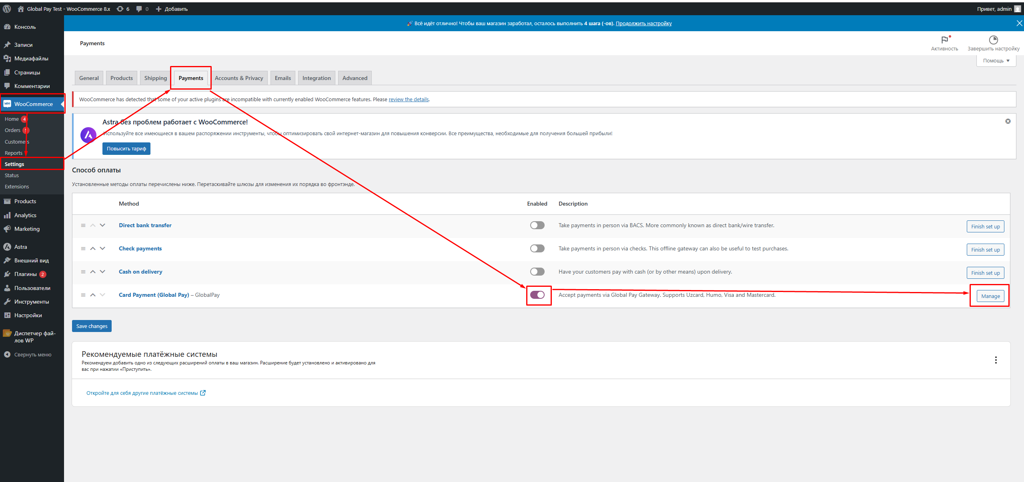
Step 3: General Settings
🔧 General Settings
| Field | Example | Description |
|---|---|---|
| Enable method | ✅ | Turns on the payment method |
| Title | Pay by Card | Shown on checkout page |
| Description | Secure card payment via GlobalPay. | Message to customers |
🔐 API Settings
| Field | Value |
|---|---|
| Environment | Sandbox: Sandbox (Test Mode) · Production: Production |
| OAuth Username | Sandbox: [test_username] · Production: [your_username] |
| OAuth Password | Sandbox: [test_password] · Production: [your_password] |
| Service ID | Sandbox: 10 (example) · Production: [your_service_id] |
Credentials for Sandbox and Production are different. Request the correct pair from Global Pay support: Telegram: @Globalpay_merchants_support
🎨 Additional Options
| Field | Recommended |
|---|---|
| Enable API logging | ✅ (for debugging purposes) |
Step 4: Save Settings
Click the Save changes button at the bottom.
5️⃣ Product Fields Setup (IKPU and Packaging Code)
After activating the Global Pay plugin, additional fields appear on the product screen:
- WooCommerce → Products → select a product.
- Product data → General tab.
- Fill Product code (IKPU) and Packaging code (both required).
- Save the product.
Plugin installation: Plugin Installation in this guide.
IKPU and packaging codes come from tasnif.soliq.uz, call center 1198, or Global Pay support. Confirm values with your supplier if unsure.
6️⃣ Testing (Sandbox Mode)
Prepare Your Store
-
Create a test product:
- WooCommerce → Products → Add New
- Set price to at least 1000 UZS (e.g., 10000 UZS).
- Click Publish.
⚠️ Important: Orders with amounts below 1000 UZS may be rejected by the API.
-
Check checkout configuration:
- WooCommerce → Settings → Advanced
- Make sure WooCommerce Blocks Checkout is enabled.
Test Cards
| Card Type | Number | Expiry | CVV | OTP |
|---|---|---|---|---|
| Uzcard | 8600 3304 8051 7737 | 07/27 | — | SMS |
| HUMO | 9860 0901 0156 0804 | 01/27 | — | Browser Console* |
| Visa | Request from Global Pay support | |||
| Mastercard | Request from Global Pay support |
⚠️ Note: Test cards work only in Sandbox mode. 🔐 For HUMO test cards, the OTP code appears in the browser console, not via SMS. In Production, all cards use SMS OTP.
Test Procedure
-
Add a product (≥ 1000 UZS) to the cart.
-
Proceed to checkout.
-
Select
Pay by Card (GlobalPay)as the payment method. -
Enter card details:
- Card number
- Expiry date (MM/YY)
- CVV (for Visa/Mastercard)
- Cardholder name (for Visa/Mastercard)
-
Click Place Order.
-
Enter the OTP code:
- HUMO (Sandbox): from browser console
- Uzcard/Visa/Mastercard: from SMS
-
Verify that the order completes successfully.
Getting the HUMO OTP Code (Sandbox Only)
- Open browser developer tools (F12).
- Go to the Console tab.
- Look for a message:
🔐 TEST OTP CODE: 123456
📝 Note:
- HUMO OTP is shown in the browser console in Sandbox only.
- Uzcard, Visa, and Mastercard OTPs are sent by SMS in both Sandbox and Production.
7️⃣ Preparing for Production
Pre-Launch Checklist
- Production credentials received
- Site runs over HTTPS
- SSL certificate installed
- Plugin tested in Sandbox
- Order notification emails verified
- File permissions checked
Switching to Production
-
WooCommerce → Settings → Payments → GlobalPay
-
Set environment to
Production -
Enter your live credentials:
- Service ID
- OAuth Username
- OAuth Password
-
Disable debug options:
- API logging ❌
- Checkout debug ❌
-
Save settings.
Production Testing
- Make a real purchase (≥ 1000 UZS).
- Check that the order appears in WooCommerce.
- Verify transaction status in GlobalPay Admin.
- Ensure email notifications are received.
- Confirm that all cards (including HUMO) require OTP via SMS.
8️⃣ Troubleshooting
Payment Option Not Visible
Issue: Payment method doesn’t appear at checkout. Solution:
- Ensure plugin is activated.
- Go to WooCommerce → Payments → GlobalPay and check it’s enabled.
- Clear cache in WordPress and browser.
- Verify your theme is WooCommerce compatible.
“Card Information Not Found” Error
Issue: API rejects card information. Solution:
- Check Service ID, Username, and Password.
- Ensure correct environment (Sandbox vs Production).
- Confirm card number and expiry date.
- Verify CVV and cardholder name (Visa/Mastercard).
- Order amount must be ≥ 1000 UZS.
OTP Code Not Received
Sandbox – HUMO:**
- OTP appears in browser console (no SMS).
Sandbox – Uzcard/Visa/Mastercard:
- Should arrive via SMS.
- Check your test phone number in GlobalPay account.
Production:
- OTP always arrives via SMS.
- Verify correct phone number.
- Contact GlobalPay Support if issue persists.
Viewing Logs
Enable API logging:
- WooCommerce → Payments → GlobalPay → Enable logging
Check logs via file system:
tail -f /wp-content/plugins/wc-globalpay-gateway/logs/api.log
Or via WordPress debug log:
tail -f /wp-content/debug.log | grep GlobalPay
Cache Issues
Issue: Card info not clearing after cancellation. Solution:
-
Clear browser cache (Ctrl + Shift + R).
-
Delete WordPress transients:
// В WordPress Admin → Tools → WP-CLI wp transient delete --all
Theme or Plugin Conflicts
Issue: Plugin not functioning with certain themes. Solution:
- Switch to a default theme (Storefront, Twenty Twenty-Four).
- Disable other plugins one by one.
- Check browser console for JavaScript errors.
- Make sure your theme supports WooCommerce Blocks.
9️⃣ Support
Repository
Bitbucket:
bitbucket.org/global_solutions/global-pay-plugins-woo-8.x-9.x-10-x
Documentation and technical support
Confluence Wiki:
WooCommerce. Installation and configuration guide for the GlobalPay plugin
GlobalPay API Docs:
globalsolutions.portal.swaggerhub.com/globalpay/docs/main-page
Technical support: 💬 Telegram: @Globalpay_merchants_support
🔟 Additional Information
Supported Card Types
| Card Type | Prefix | CVV | Cardholder Name | OTP (Sandbox) | OTP (Production) |
|---|---|---|---|---|---|
| Uzcard | 8600, 5614, 5440, 6264, 6262, 6263 | ❌ | ❌ | SMS | SMS |
| HUMO | 9860 | ❌ | ❌ | Browser Console | SMS |
| Visa | 4 | ✅ | ✅ | 3D Secure | 3D Secure |
| Mastercard | 5 | ✅ | ✅ | 3D Secure | 3D Secure |
Limitations & Requirements
| Parameter | Value |
|---|---|
| Minimum Order Amount | 1000 UZS |
| Supported Currency | UZS (Uzbek Sum) |
| HTTPS Required | Yes (for production) |
| Required product fields | IKPU, Packaging Code |
Plugin Directory Structure
wc-globalpay-gateway/ ├── wc-globalpay-gateway.php ├── includes/ │ ├── class-wc-gateway-globalpay.php │ ├── class-globalpay-api.php │ ├── class-globalpay-product-fields.php │ ├── class-globalpay-security.php │ ├── class-globalpay-token-manager.php │ ├── class-globalpay-webhook.php │ ├── class-wc-globalpay-blocks-support.php │ └── class-globalpay-hpos-helper.php ├── assets/ │ ├── css/checkout.css │ ├── js/blocks.js │ ├── js/checkout.js │ └── images/cards/ ├── languages/ │ ├── wc-globalpay-gateway-en_US.mo │ ├── wc-globalpay-gateway-ru_RU.mo │ └── wc-globalpay-gateway-uz_UZ.mo ├── templates/checkout/ └── logs/api.log
Version: 1.0.0 Updated: November 29, 2025 Author: Rushan Idrisov